
Heatmap tools mean the difference between knowing your page isn’t converting and knowing exactly why it isn’t.
Your analytics tell you that a key landing page has a 60% bounce rate. A heatmap tells you that visitors are stopping at the exact spot where your pricing details should be — and that the section is pushed too far down the page to see. That’s the kind of specific, actionable insight that changes what you test next.
This list covers nine of the best heatmap tools available today, from completely free options to platforms built for larger product teams. We’ve included what each tool is best for, how pricing works, and what to watch out for before you commit.
Table of Contents
What to Look for in a Heatmap Tool
Not every heatmap tool works the same way, and the differences matter depending on how you plan to use the data.
Before jumping into the list, here are the main factors worth comparing:
- Heatmap types. Most tools offer click maps and scroll maps. Some include move maps (cursor tracking) and attention maps. If scroll depth is your main question, any tool here works. If you want to understand mouse movement patterns or where eyes linger, look for a tool with move or attention maps.
- Session recordings. Most heatmap tools now bundle session recordings. These let you watch real visitor sessions back — useful when you want to understand the sequence of actions before someone abandons a page.
- WordPress compatibility. Some tools install via a tracking code snippet; others are native WordPress plugins. If you want to avoid editing your site’s code, look for a tool with an official WP plugin or a WordPress-native option.
- Privacy and GDPR compliance. Heatmap tools collect behavioral data. If your site has European visitors, check whether the tool is GDPR-compliant by default and what data it stores or anonymizes.
- Free plan availability. Several tools on this list offer permanent free plans, not just trials. If you’re evaluating options, start there before committing to paid.
With those criteria in mind, here are the nine best heatmap tools worth considering today.
Best Heatmap Tools for Websites
Here’s a quick overview of the best heatmap tools for websites.
| PRODUCT NAME | BEST FOR | STARTING PRICE |
|---|---|---|
| UserFeedback | WordPress users who want heatmaps + on-site surveys in a single plugin | Free; Elite from $149.50/yr |
| Microsoft Clarity | Anyone who needs solid heatmap data at no cost | Free |
| Hotjar | UX teams who need heatmaps, session recordings, and surveys in one place | Free; from ~$39/mo |
| Crazy Egg | Teams running A/B tests who want heatmap data in the same platform | From ~$29/mo |
| Lucky Orange | Small businesses wanting real-time visitor monitoring alongside heatmaps | From ~$32/mo |
| Mouseflow | Sites with forms or multi-step flows needing detailed friction analysis | Free; from ~$25/mo |
| FullStory | Product and engineering teams needing deep digital experience analytics | Free tier; paid on request |
| Smartlook | Businesses tracking users across a web presence and a mobile app | Free; from ~$55/mo |
| VWO Insights | CRO teams already using VWO for A/B testing and personalization | Contact for pricing |
Keep reading for an in-depth review of each one!
1. UserFeedback
UserFeedback is the only tool on this list that pairs click heatmaps with on-site feedback surveys inside a single WordPress plugin. That combination changes what you can do with behavioral data.
For instance, when you see a heatmap showing that visitors are ignoring your pricing link, you can immediately ask those visitors why — without switching tools or adding a separate subscription.
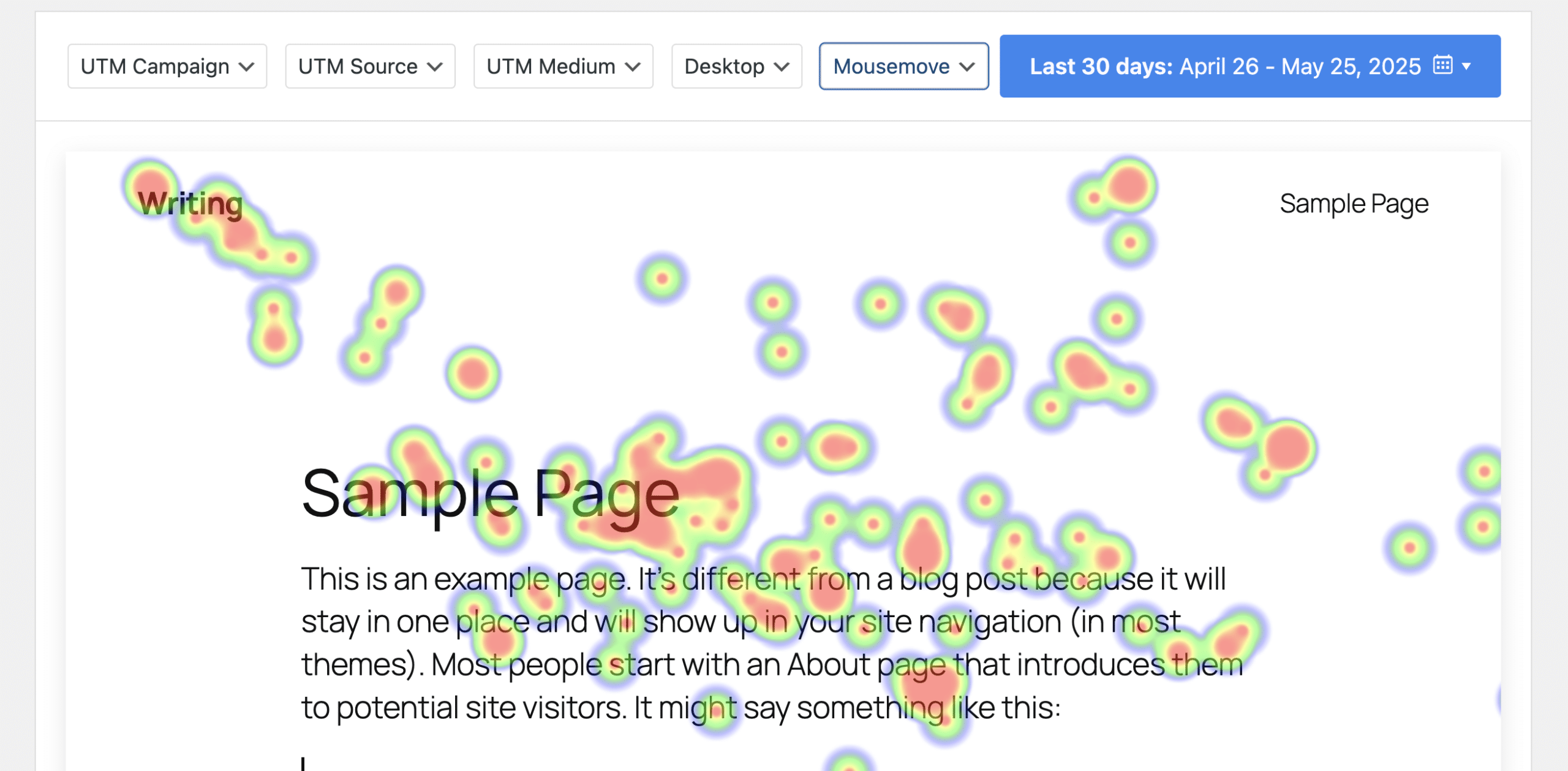
The Heatmaps feature is available on the Elite plan and tracks exactly where visitors click and how their mouse moves across any page on your site. The data appears as a visual overlay directly in your WordPress dashboard. You’re working in the same interface you use for everything else on your site, which keeps the workflow simple for non-technical users.
What makes UserFeedback worth leading this list isn’t the heatmap feature in isolation — it’s that heatmaps and surveys share the same data in one place. You can spot that 40% of visitors are dropping off before they reach your main CTA, then deploy an exit intent survey to ask what stopped them.
Most dedicated heatmap tools require you to set up a separate feedback tool to close that loop. UserFeedback does it natively.
UserFeedback also integrates with Google Analytics and MonsterInsights out of the box, so behavioral patterns you observe in a heatmap can be cross-referenced with your traffic and conversion data.
For a full setup walkthrough, see our guide on creating website heatmaps in WordPress.
→ Get started with UserFeedback
2. Microsoft Clarity
Microsoft Clarity is the strongest free heatmap tool available. It offers click heatmaps, scroll maps, and session recordings with no usage caps — which is remarkable for a free product. Most free tiers on heatmap tools limit you to a few hundred sessions per month; Clarity records everything.
Two features stand out beyond the basics. Rage click detection automatically flags sessions where a visitor clicked the same spot repeatedly — usually a sign they expected something to be clickable and it wasn’t. Dead click detection does the same for clicks that produced no response. Both are useful for catching usability problems without manually reviewing every session recording.
Clarity integrates with Google Analytics 4, so you can jump from a GA4 segment directly into related session recordings. It also integrates natively with UserFeedback, which is worth knowing if you’re using both: your heatmap observations from Clarity and your survey responses from UserFeedback can inform each other without requiring a separate analytics stack.
For anyone starting out with heatmap tools, Clarity is the obvious first choice. There’s no cost and no reason not to install it — the only real limitation is that it doesn’t include feedback surveys or A/B testing, so you’ll eventually want to pair it with something else as your optimization program matures.
See our overview on what heatmaps are and why to use them if you’re new to the concept.
→ Get started with Microsoft Clarity
3. Hotjar
Hotjar built the market for all-in-one UX analytics tools, and it remains one of the most comprehensive options available. Heatmaps, session recordings, on-site feedback polls, and user interview scheduling all live in the same platform — which means a UX researcher can go from observing a behavior in a heatmap to scheduling a follow-up interview without leaving the tool.
The heatmap capabilities cover clicks, mouse movement, and scroll depth. Session recordings let you watch individual visitor sessions with filters for specific behaviors — for example, sessions where a visitor rage clicked or dropped off at a particular step. The depth of filtering is one area where Hotjar’s maturity shows; the tool has been refined by years of actual UX research workflows.
The main consideration is cost. The free plan is quite limited, and the pricing jumps once you need higher session volumes or advanced features. For solo site owners or small blogs, the free tier may not cover enough traffic to be useful, and the paid plans are priced for teams with an active UX practice, not individual site owners trying to understand a single landing page.
Hotjar is a well-documented, widely supported platform with integrations across most major CMS and analytics tools. If you’re running a UX audit, coordinating a research team, or need user interviews alongside behavioral data, it’s hard to beat the feature set in one place.
See our roundup of Hotjar alternatives for WordPress if the pricing doesn’t fit your budget.
4. Crazy Egg
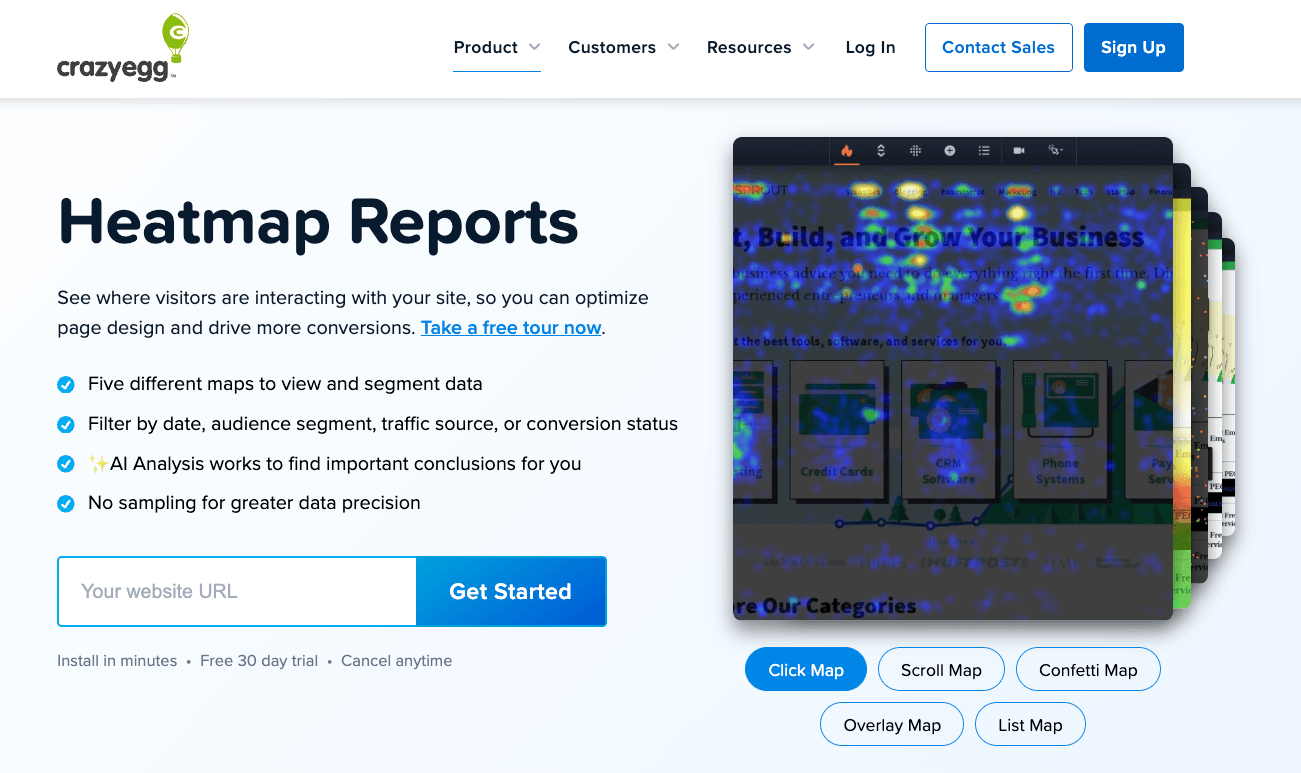
Crazy Egg’s real differentiator is the built-in A/B testing editor. Most heatmap tools show you what’s wrong; Crazy Egg lets you test a fix without leaving the platform or setting up a separate testing tool. That workflow — observe the behavior, edit the page variant, run the test — is useful for teams actively working on conversion rate optimization.
The confetti report is another standout. It maps click data by traffic source, so you can see whether visitors arriving from paid search interact with a page differently than organic visitors do. That kind of segmentation usually requires exporting data to another tool; Crazy Egg surfaces it directly in the heatmap view.
The main limitation is that there’s no permanent free plan — only a 30-day trial. If you’re comparing Crazy Egg against Microsoft Clarity (which is entirely free), the case for Crazy Egg really comes down to whether you need A/B testing. For teams that do, it earns its price. For teams that just need heatmap data and aren’t running structured tests, better free alternatives exist.
5. Lucky Orange
Lucky Orange packs more features into an entry-level price than most tools on this list. Heatmaps, session recordings, live chat, surveys, a real-time visitor dashboard, and conversion funnels all come bundled together. For small businesses that want a single tool covering multiple CRO and support functions, the value is difficult to match at this price point.
The live visitor dashboard is extremely useful when you’re actively making changes and want immediate feedback. You can see who’s on your site in real time, where they are in the funnel, and jump into a chat conversation if they seem stuck. That real-time component is rare among heatmap tools and sets Lucky Orange apart for businesses where live customer interaction matters.
The trade-off is focus. Lucky Orange is a broad tool rather than a deep one. The heatmap data is reliable, but teams doing serious conversion research will eventually want more granular segmentation and filtering than Lucky Orange provides. The surveys are also lighter than what a dedicated feedback tool offers — if survey response quality is critical to your workflow, pairing Lucky Orange with a more capable survey tool is worth considering.
→ Get started with Lucky Orange
Already Using a Heatmap Tool? Add the Missing Piece.
Heatmaps show you where visitors go. They can’t tell you why they leave. UserFeedback pairs heatmaps with on-site surveys so you can see the behavior and get the explanation — in the same WordPress dashboard.
6. Mouseflow
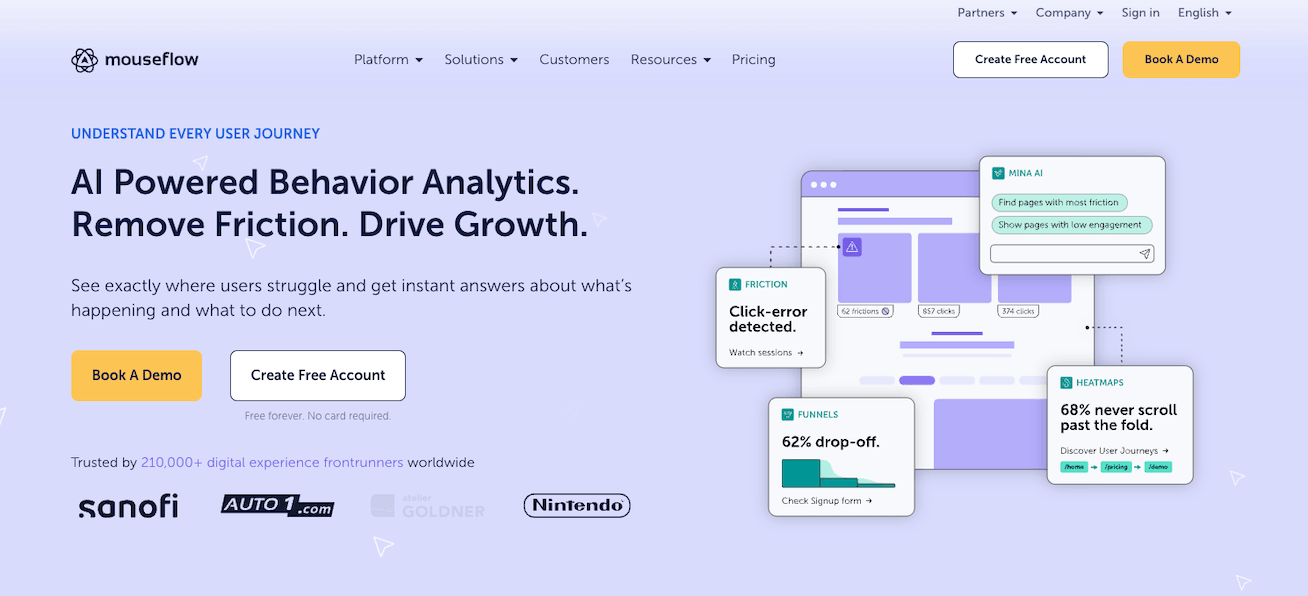
Mouseflow offers six heatmap types — more than most tools on this list. Beyond the standard click and scroll maps, it includes attention heatmaps (showing where users actually focus based on cursor position and dwell time), geo maps (click data by geographic location), and a live heatmap that updates in real time. That range of data is useful for diagnosing different types of problems on the same page.
The form analytics are where Mouseflow earns its place for eCommerce and lead gen sites. It tracks field-by-field behavior inside forms: which fields cause the most hesitation, where users abandon mid-form, and which fields get corrected most often. Most heatmap tools treat a form as a single element; Mouseflow shows you what’s happening inside it.
The friction score is also notable — it automatically surfaces sessions where visitors showed signs of struggle (rage clicks, U-turns, error messages) and ranks pages by how much friction they generate. That’s a useful prioritization signal when you’re deciding which pages to investigate first, particularly for teams without bandwidth to review session recordings manually. If you’re focused on reducing bounce rate, Mouseflow’s friction data gives you a fast shortcut to the highest-impact pages.
Check out our full list of Mouseflow alternatives if it’s a close match but not exactly what you’re looking for.
7. FullStory

FullStory takes a different approach than most tools on this list. Rather than asking you to define which events to track, it auto-captures every user interaction — every click, scroll, input, and navigation — without any manual configuration. That means you can go back and analyze behavior you didn’t think to track ahead of time, which is powerful when you’re investigating an unexpected problem.
The search capability reflects this philosophy. You can query the full corpus of captured interactions — “show me every session where a user clicked the checkout button, then left without completing a purchase” — and FullStory will surface those sessions with the relevant moments already located. For engineering teams debugging a specific drop-off or product managers investigating a funnel problem, this kind of retroactive analysis is unusually fast.
FullStory is built for teams with dedicated analytics resources. The pricing isn’t transparent, the learning curve is real, and for a solo WordPress site owner managing a blog, it’s overkill. For SaaS companies with a WordPress marketing site or for high-traffic eCommerce operations that need to investigate specific UX problems at scale, it’s worth a conversation with their sales team.
See our list of FullStory alternatives if you’re looking for something similar.
8. Smartlook

Smartlook’s main differentiator is cross-platform coverage. It tracks user behavior across web, iOS, and Android in a single dashboard — which is rare at this price point. If your business has both a WordPress site and a mobile app, Smartlook lets you see how users behave across both without maintaining two separate analytics setups.
On the web side, Smartlook offers standard heatmaps and session recordings alongside event-based funnel tracking. The event tracking is set up through a visual selector rather than code, which keeps it accessible for non-technical users. The funnel analysis shows where users drop off across multi-step processes — useful for checkout flows, onboarding sequences, or any multi-page journey on your site.
For pure web use cases without a mobile component, Smartlook’s advantages aren’t as distinct. The web feature set is solid, but tools like Microsoft Clarity (free) or Mouseflow cover similar ground for less. Where Smartlook earns its spot is specifically for businesses that need unified data across platforms — that use case is underserved by most of the alternatives.
9. VWO Insights
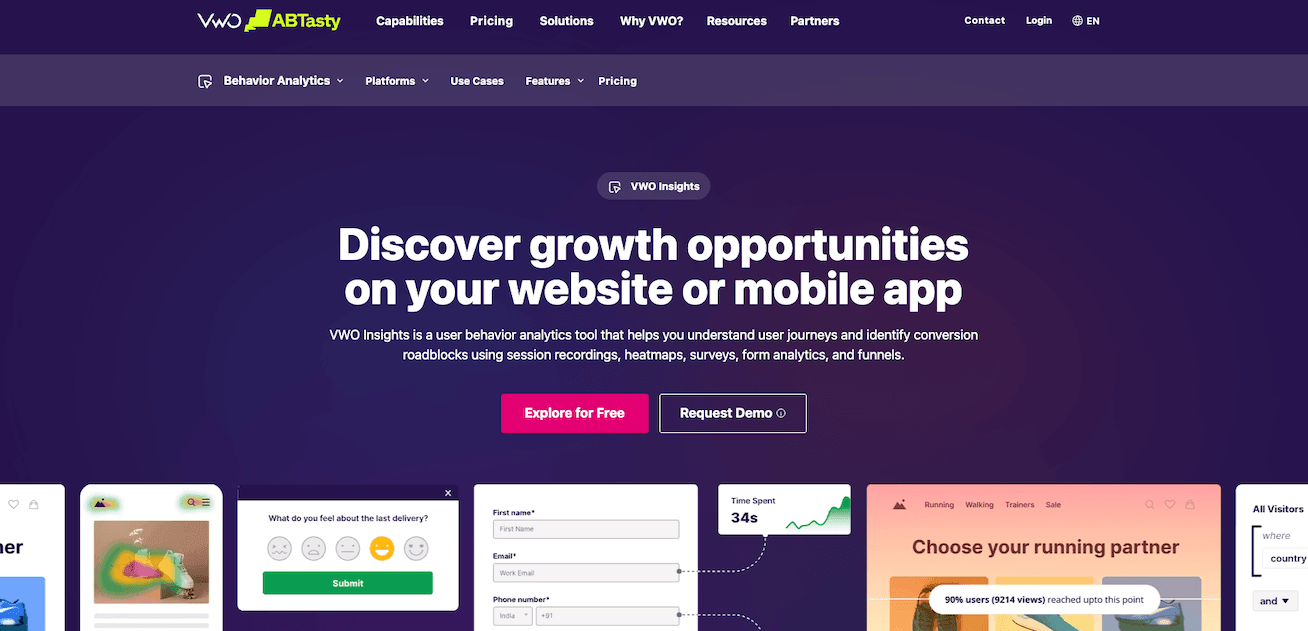
VWO Insights is part of the broader VWO platform — a suite that includes A/B testing, personalization, and audience targeting alongside behavioral analytics. The tight integration between those components is what makes Insights compelling. Heatmap and session data flow directly into VWO’s test targeting, so you can segment and personalize based on observed behavior without exporting data to another tool first.
The feature set covers what you’d expect from a mature heatmap tool: click and scroll maps, session recordings, form analytics, and on-page surveys. The surveys in particular are worth noting — they’re more configurable than what most heatmap tools include, which makes sense given that VWO’s platform is built around testing and iteration rather than passive observation. If you find in a heatmap that users are ignoring a specific section, you can deploy a targeted survey directly from the same interface.
VWO Insights makes the most sense as part of a broader VWO investment. If you’re already running A/B tests and personalization through VWO, adding Insights gives you a complete view of the visitor journey without managing multiple subscriptions. Standalone, it’s harder to justify compared to simpler and more affordable tools like Mouseflow or Clarity. Pricing requires contacting their sales team, which adds friction to the evaluation process.
For a more accessible alternative, our guide to the best website feedback tools covers a broader range of options at different price points.
→ Get started with VWO Insights
Which Heatmap Tool Should You Choose?
With nine tools on this list, the right pick depends on what you’re trying to solve and what platform you’re on. Here’s a quick decision guide:
- You’re on WordPress and want heatmaps + surveys in one place → UserFeedback. It’s the only WordPress-native option that combines
behavioral data and qualitative feedback without a second subscription. The Elite plan is where the Heatmaps feature lives. - You need heatmap data and don’t want to pay for it → Microsoft Clarity. Completely free, no session limits,
GDPR-compliant by default. Start here and upgrade if you outgrow it. - You’re running a UX research program and need a full research suite → Hotjar. The combination of heatmaps, session recordings,
feedback surveys, and user interview scheduling in one platform is hard to match for teams doing structured qualitative research. - You’re actively running A/B tests → Crazy Egg. The built-in testing editor means you can observe a problem in a heatmap and
test a fix without switching tools. - You want real-time visitor monitoring on a small budget → Lucky Orange. Heatmaps, session recordings, live chat, and a
real-time visitor dashboard in one affordable package. - You have forms or checkout flows to optimize → Mouseflow. The form analytics and friction scoring go deeper than any other tool
on this list for diagnosing where users struggle inside multi-step processes. - You’re a product or engineering team at scale → FullStory. Auto-captured interactions and retroactive search make it
unusually powerful for debugging specific drop-offs — but it’s built for teams, not solo site owners. - You have both a web presence and a mobile app → Smartlook. Cross-platform heatmaps and session recordings across web, iOS,
and Android in a single dashboard. - You’re already invested in the VWO platform → VWO Insights. The tight integration with VWO’s A/B testing and personalization
tools makes Insights most valuable as part of a broader VWO subscription.
As you can see, the best heatmap tool really depends on your unique needs.
FAQs About Heatmap Tools
What is a heatmap tool and how does it work?
A heatmap tool tracks visitor interactions on your web pages — clicks, scroll depth, and mouse movement — and visualizes that data as a color-coded overlay on the page itself. High-activity areas appear in warm colors (red, orange); low-activity areas appear in cool colors (blue, green). This makes it easy to see where visitors focus, how far they scroll, and what they ignore, without reviewing individual session recordings. See our guide on what heatmaps are and why to use them for a full breakdown of how the different heatmap types work.
Are there any good heatmap tools that are completely free?
Yes — Microsoft Clarity is completely free with no usage caps, no paid tiers, and no session recording limits. It includes click heatmaps, scroll maps, session recordings, rage click detection, and dead click detection. For most sites that just need heatmap data to start with, Clarity covers the basics well without any cost. Mouseflow and Smartlook also offer free plans, though those come with more limitations on session volume and features.
What’s the best heatmap tool for WordPress?
For WordPress users who also need on-site surveys and feedback collection, UserFeedback is the strongest native option — it installs like any WordPress plugin, requires no code, and includes heatmaps alongside surveys, NPS tracking, and AI Summaries on the Elite plan. For users who only need heatmap data and want a free option, Microsoft Clarity integrates with WordPress easily and connects natively with UserFeedback if you want to use both together.
What’s the difference between a heatmap and a session recording?
A heatmap aggregates data across all visitors on a page — it shows you the combined pattern of where hundreds or thousands of people clicked and scrolled. A session recording captures a single visitor’s journey through your site as a video replay. Heatmaps are better for identifying patterns across your full audience; session recordings are better for understanding the specific sequence of actions an individual visitor took. Most heatmap tools now include both, since they answer different questions.
Do heatmap tools slow down my website?
Most modern heatmap tools are designed to load asynchronously, meaning the tracking script doesn’t block your page from loading. In practice, the impact on page load time is minimal for most tools. If site speed is a concern, check whether the tool offers asynchronous script loading (most do) and look for a tool with a small script footprint. WordPress-native tools like UserFeedback have an advantage here — they’re integrated into the platform rather than loading an external third-party script.
How do heatmaps help improve conversion rates?
Heatmaps surface specific, locatable problems — a CTA button nobody clicks, a section that most visitors never scroll to, a form field where everyone abandons. Those findings give you something concrete to test and fix, rather than trying to improve a page based on conversion rate data alone. The pattern is typically: observe the heatmap, form a hypothesis about what’s causing the problem, make a change, and measure the result. Heatmaps are most effective when paired with a survey tool (to ask visitors why they’re behaving a certain way) and an A/B testing tool (to validate that a fix actually improves conversions).
That’s it! I hope this article helped you find the right heatmap tool for your site. If you liked this article, check out the following resources:
- How to Create Website Heatmaps for WordPress (Tips & Tutorial)
- Guide: What Are Heatmaps & Why Use Them?
- Best Website Feedback Tools (Any User and Website)
- Best Hotjar Alternatives for WordPress
- How To Provide a Good Website User Experience (+ Examples)
- How to Reduce Bounce Rate
And remember to follow us on X and Facebook to learn more about online surveys, questions, and customer feedback.